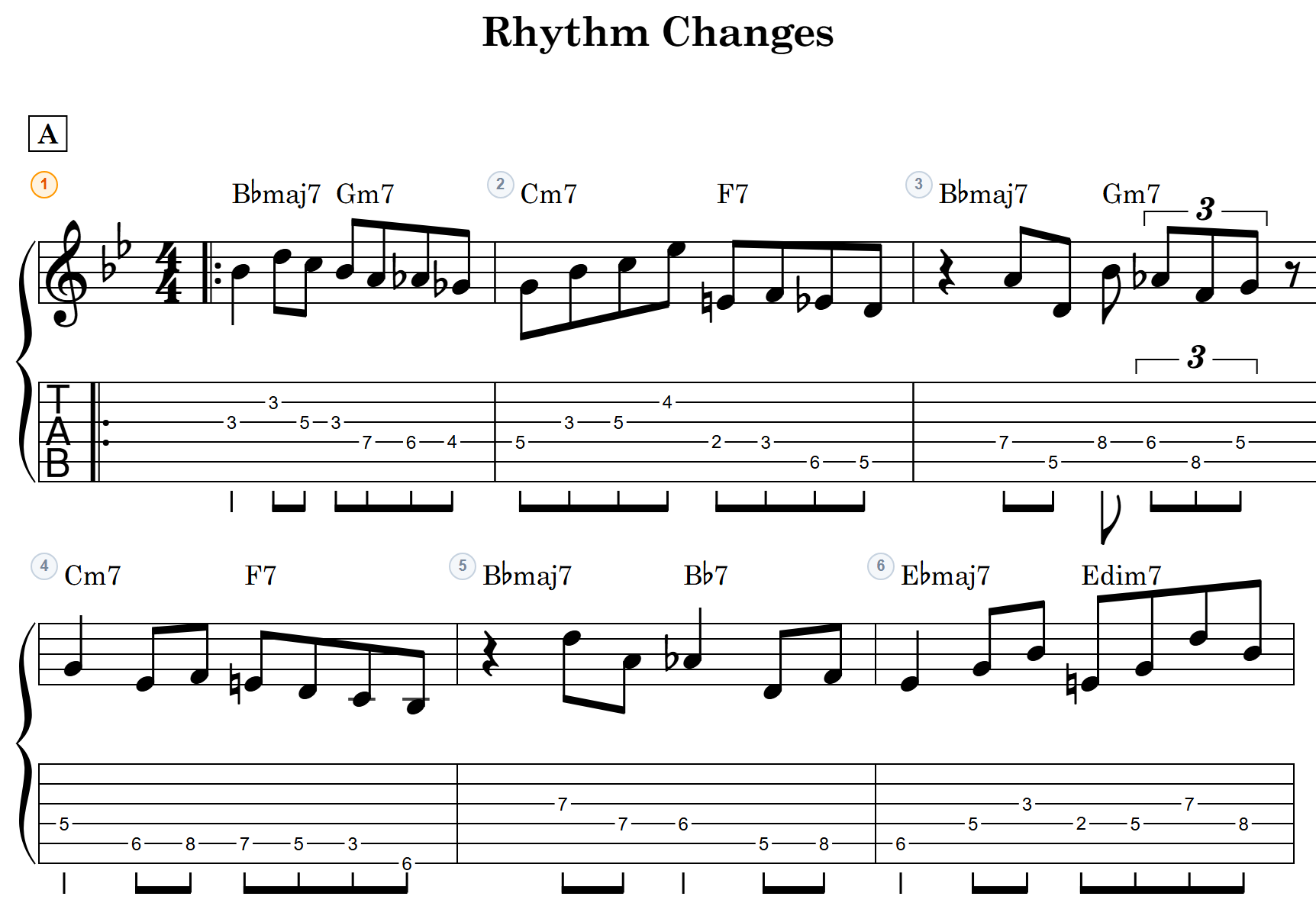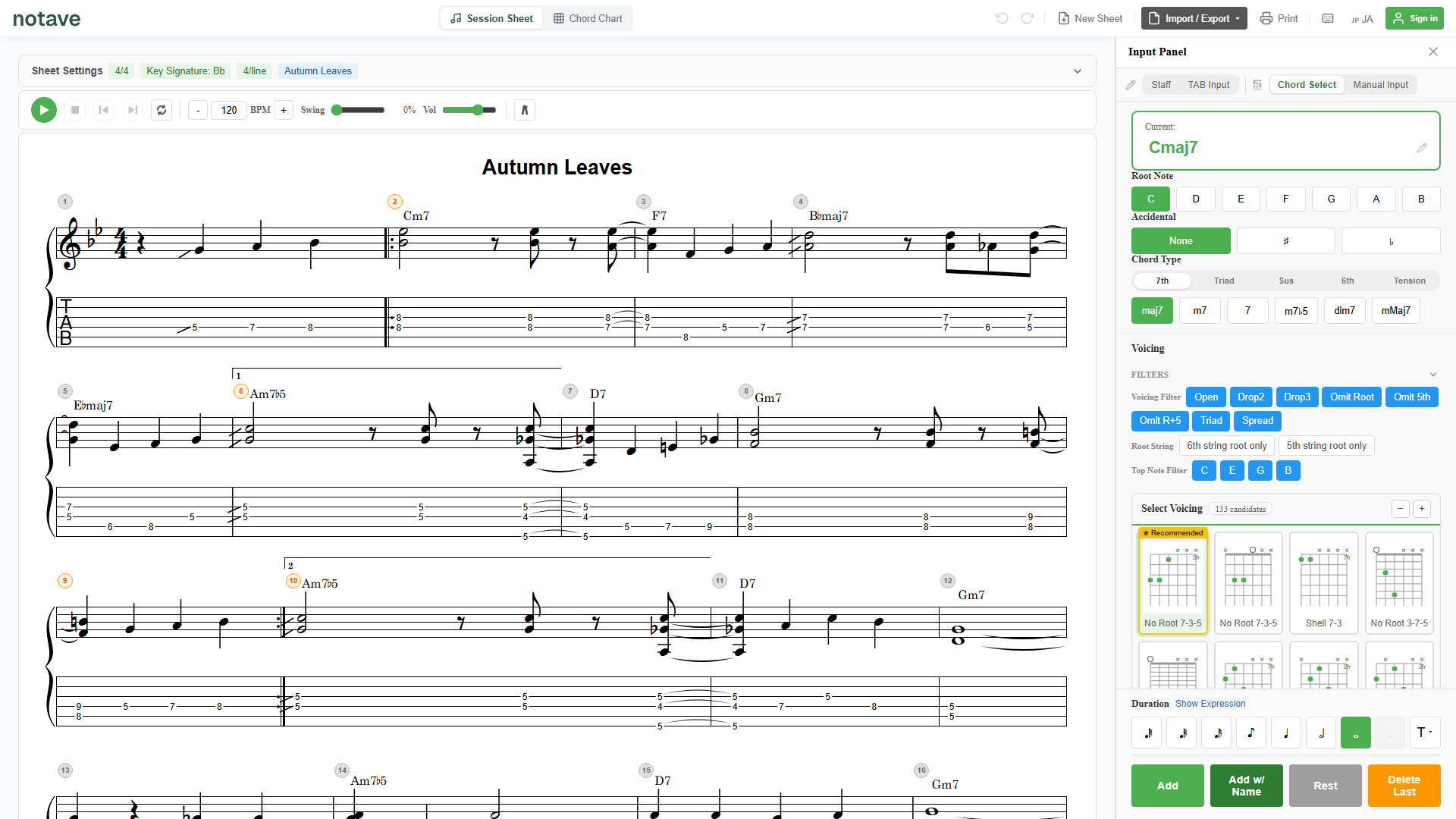
“I want to send this progression to my bandmates.” “I’d like to share today’s phrase with my student.” “I transcribed a riff — I just want them to see it as-is.”
Handing a finished sheet to someone usually takes more steps than you’d expect: export a PDF and attach it to an email, snap a photo and send it. And the recipient can only look — they can’t pick it up and keep working on it.
With notave’s Share Link, you can hand off a sheet in a single URL. The recipient needs no login and no install, opens it right in the browser, and can even Copy & Edit it as their own to keep going. Here’s how it works.
What is a notave Share Link?
A Share Link bundles your sheet — the progression, staff, TAB, and settings — into one URL you can hand over.
The key is in how it works: the sheet data is embedded in the URL itself. Nothing is stored on a server somewhere. Because of that —
- the recipient opens it in the browser with no login and no install
- your sheet data is never parked on a server, so no account or cloud is needed
- the person creating the link doesn’t need to log in either
Unlike a PDF or an image, a Share Link hands over a sheet they can actually edit — that’s its biggest advantage.
How to create a Share Link (3 steps)
1. Create or open a sheet
Make the sheet you want to share in notave, or open an existing one. A simple chord progression or a fully arranged TAB both work.
2. Choose “Share Link” from the menu
Selecting share-link creation from the menu generates a URL with that sheet’s data embedded in it.
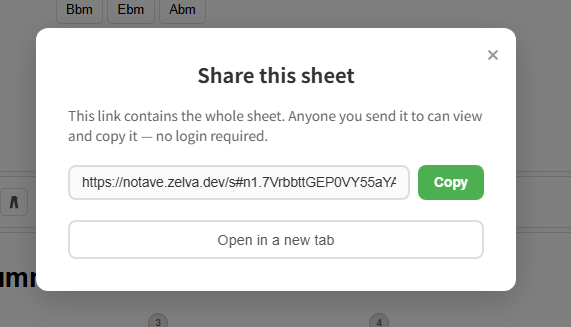
3. Copy the link and send it
Copy the URL and send it however you like — email, chat, social media. The recipient just opens the link to see the sheet.
What the recipient can do
Opening a Share Link shows a read-only view of the sheet. From there, the recipient can:
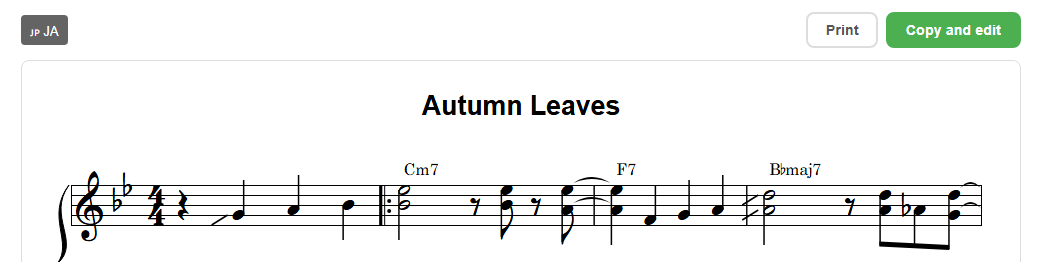
- View the sheet right in the browser.
- Print it directly from the print button.
- Switch between Japanese and English to match their setup.
- Copy & Edit — this button pulls the received sheet into their own editor so they can keep building on it (their current sheet is replaced, so a confirmation dialog appears first).
Going beyond “just show it” to “hand it over so they can work from it” is what makes Share Links handy. It works by handing over a URL to view rather than editing together in real time — which is exactly why no account or server is involved.
Where it comes in handy
- Handouts for lessons: share an exercise or phrase by URL; students can “Copy & Edit” to adapt it for their own practice.
- Bands & sessions: send today’s progression to the whole band in one URL, and they can edit the same sheet too. If you want every part on one score — vocals, guitar, bass, keys and drums — and the whole band writing it together, accolva takes the same idea and builds it out for bands.
- Social media exchanges: keep a “how do you play this?” back-and-forth going while actually showing the sheet.
- Sharing transcriptions: hand over a sheet you transcribed or entered by hand exactly as it is.
Summary
notave’s Share Link hands off a finished sheet in a single URL.
- The recipient opens it in the browser with no login and no install
- They can view, print, switch language, and “Copy & Edit”
- Data is embedded in the URL, so there’s no parking your sheet on a server
Make a sheet and send a Share Link. At notave.zelva.dev there’s no sign-up and no install — you can start right now.
If you’d rather put a sheet right on a blog or website, see how to embed TAB & chord sheets. And to display chord degrees on your sheet, see how to use Interval Display.