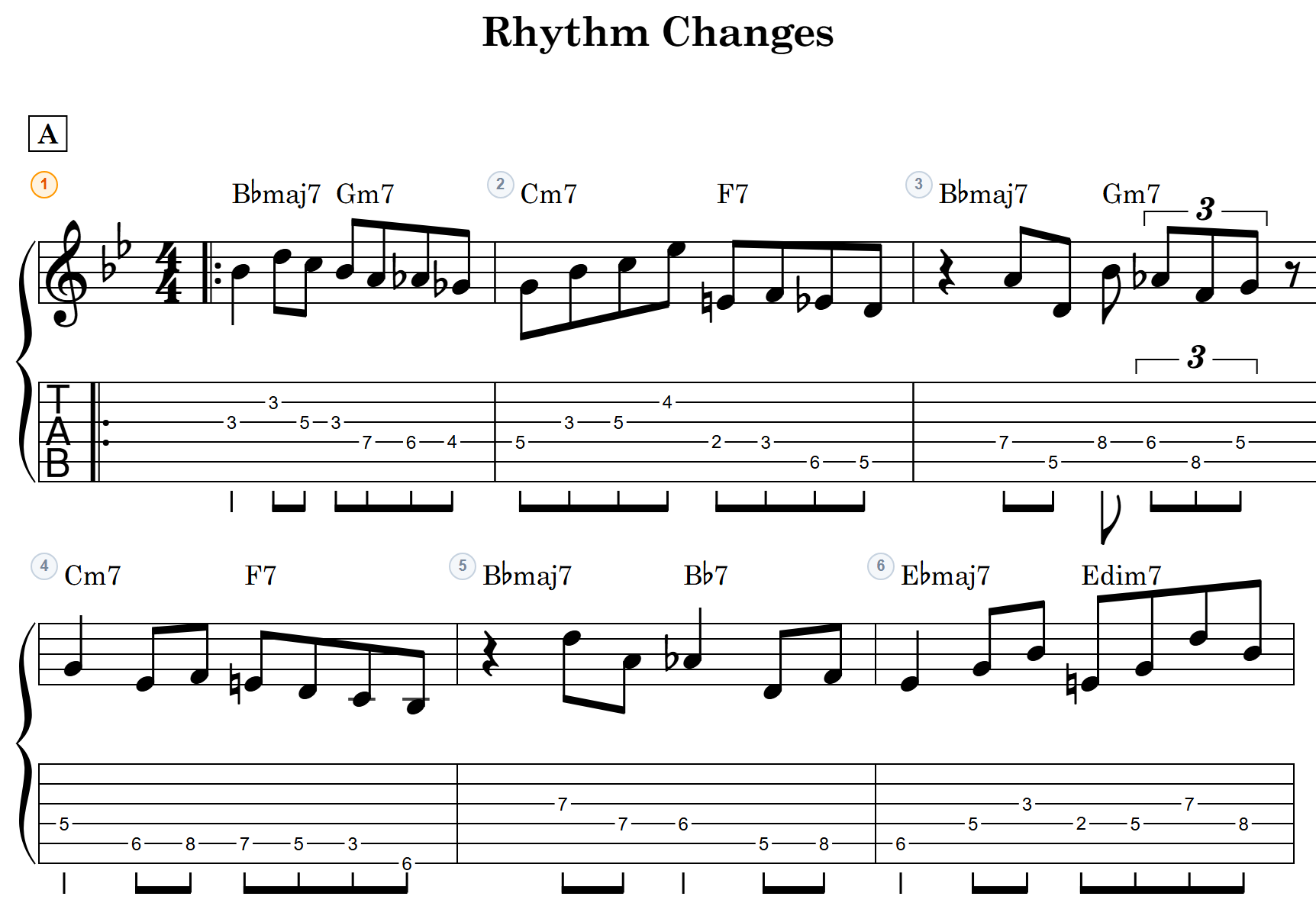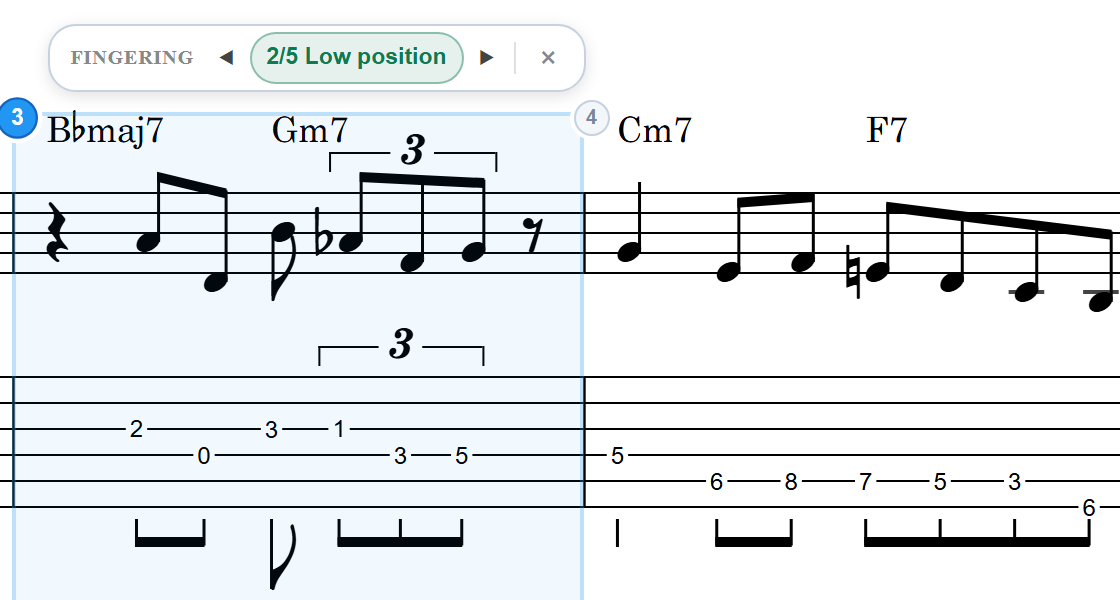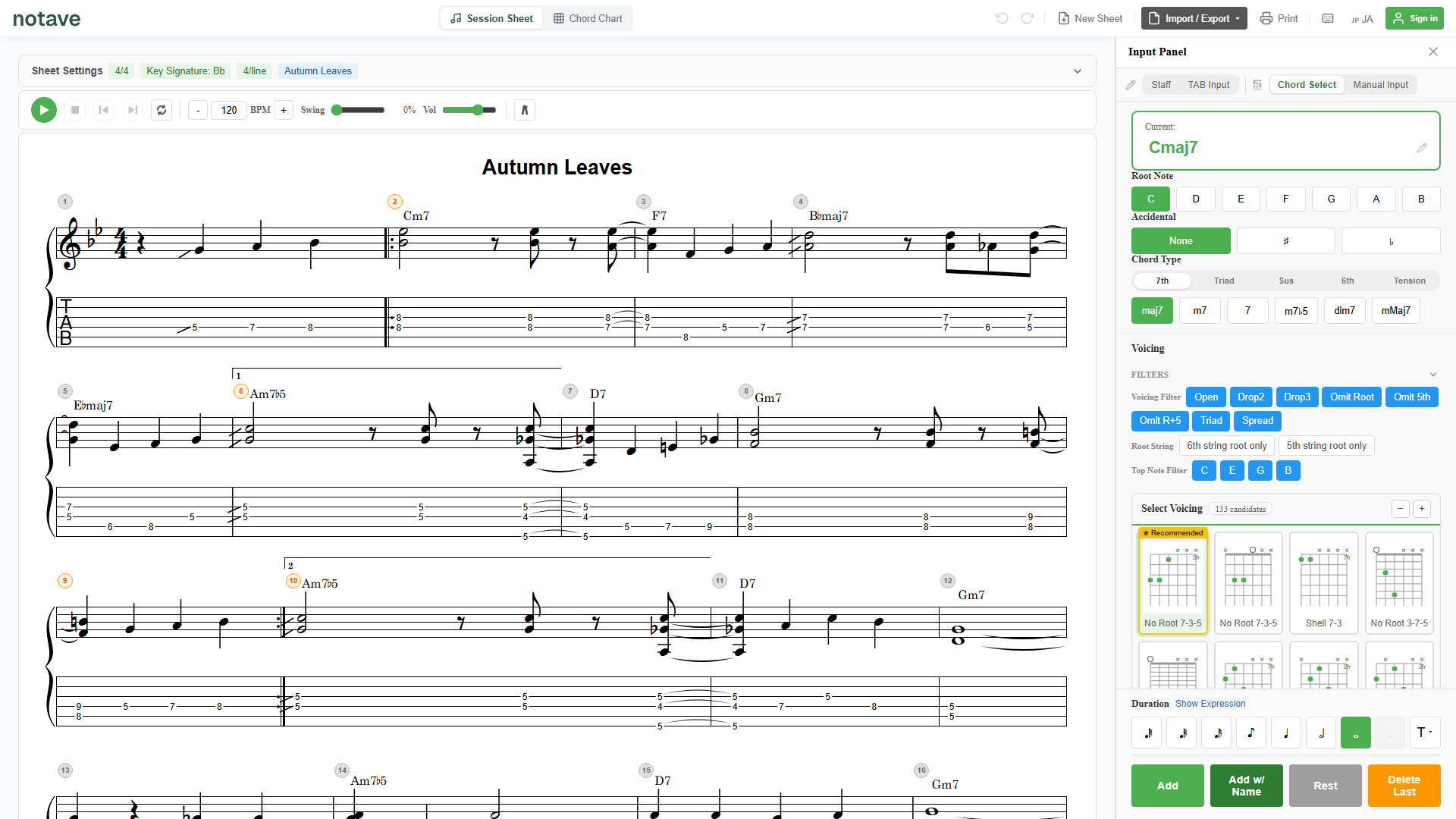
“I want to turn the score I wrote in MuseScore into guitar TAB.” “I want to see a score with chord symbols as TAB, with the fingering.” “MIDI drifts on note lengths and chords — can’t it be more accurate?”
A score written in notation software can be exported as MusicXML. But turning that into guitar or bass TAB means deciding, note by note, which string and fret to play — which adds up fast.
notave’s MusicXML import automates the whole thing. Load a MusicXML file and notave generates guitar and bass TAB automatically. And because MusicXML carries exact note lengths, chords, and chord symbols, the conversion is more faithful than MIDI — closer to the score you intended. This guide covers what it does, how to use it, and how to get a clean conversion.
Working from paper or a PDF rather than score data? How to convert sheet music to guitar TAB walks through the route for each form your score is in.
The fastest way: drop the file on the converter page
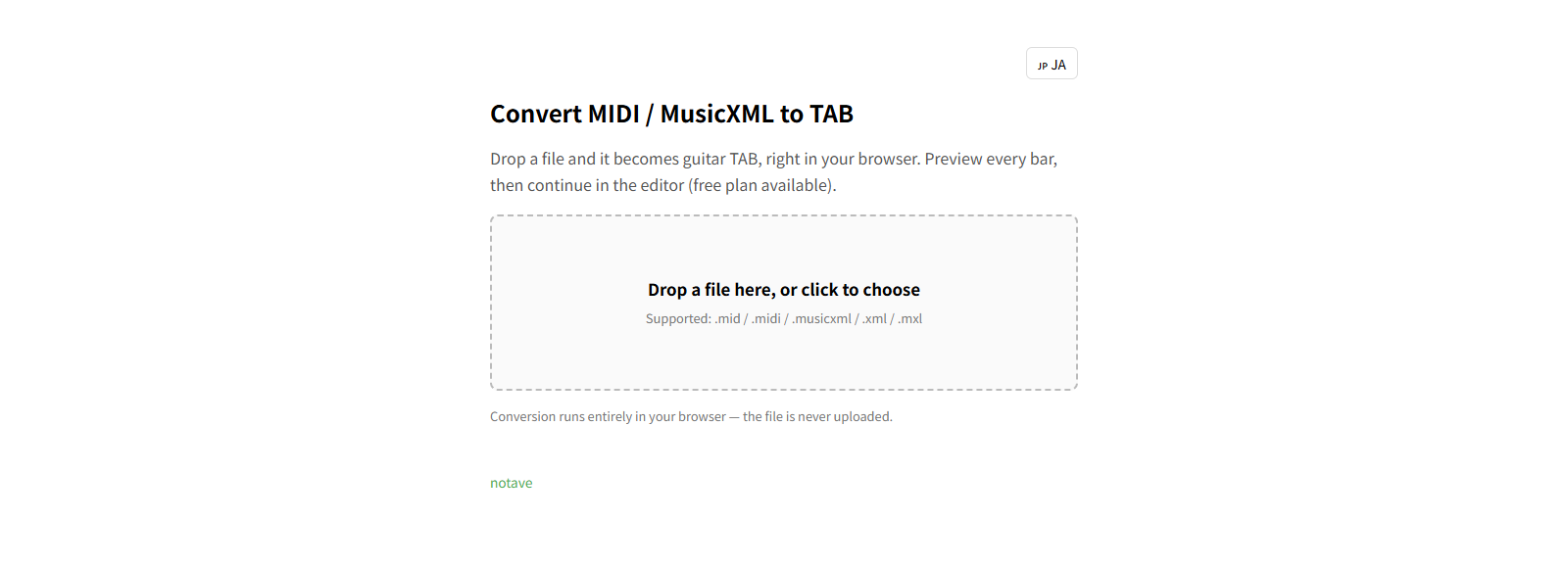
If you just want to see the result, drag and drop your .musicxml / .xml / .mxl (compressed works too) onto notave’s converter page. Conversion runs entirely in your browser (the file is never uploaded), and you get a full-length TAB preview with no sign-in — playable, printable, and shareable as a URL. When you want to refine it, “Copy to edit” hands it to the editor.
Chord symbols (harmony), mid-song time-signature changes, and any TAB fingering written in the file carry over. When you want to pick the part yourself or control chord re-voicing, that’s what the editor’s MusicXML import — the subject of this guide — is for.
What is MusicXML import?
MusicXML import reads a MusicXML file (.musicxml / .mxl / .xml) and converts it to TAB. Pick one part from the file, and notave transcribes its performance into guitar or bass tablature.
Almost every notation app — MuseScore, Finale, Sibelius, Dorico — can export MusicXML. So “write the score in notation software → get playable TAB in notave” works straight through.
The difference from MIDI is accuracy
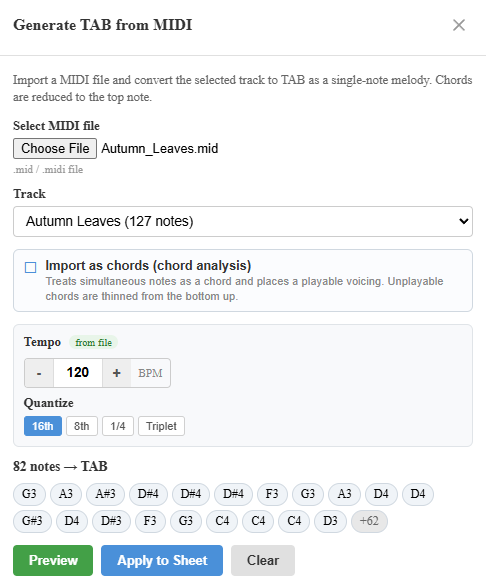
notave also has MIDI import, but MusicXML has strengths MIDI doesn’t.
- Exact note lengths: MusicXML carries note values as part of the score, so there’s no need to estimate tempo or quantize to correct them. A quarter note stays a quarter note.
- Chords are explicit: simultaneous notes are written as a chord, so there’s no guessing which notes form a chord and which are single notes.
- Chord symbols come across: notave reads the chord symbols (harmony) written in the score — Cmaj7, G7/B — and can reflect them straight onto the chord chart lane.
MIDI only stores performance information — which note plays, when, and for how long — while MusicXML holds the score itself. So when you want to import an accurate score, MusicXML has the edge.
notave’s job is to map that accurate information onto a fingering you can actually play, reading the line and keeping positions without needless lateral jumps.
How to use it
1. Open MusicXML import
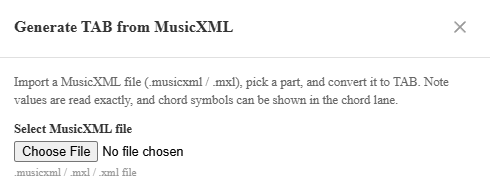
Open notave and choose “MusicXML to TAB” from the export menu. The import dialog appears.
2. Choose a MusicXML file
Use “Select MusicXML file” to pick a .musicxml / .mxl / .xml file. Compressed .mxl files load directly too. Once loaded, you’ll see the parts in the file and the tempo (BPM) detected from it.
The part with the most notes is selected automatically. If your score has several instruments (melody, accompaniment, bass…), switch to the part you want as TAB.
3. Choose a destination (append vs new sheet)
- Append: writes onto the end of the sheet you have open, keeping the current time signature and tempo.
- New sheet: clears the current sheet and loads the time signature and tempo from the file. Scores that change time signature mid-piece bring those changes across too.
Pick “New sheet” to import from scratch, or “Append” to add onto an existing sheet.
4. Choose how chords are handled
Because MusicXML carries chords directly, notave places chords as written into a voicing you can play on guitar by default. Toggle these options as needed.
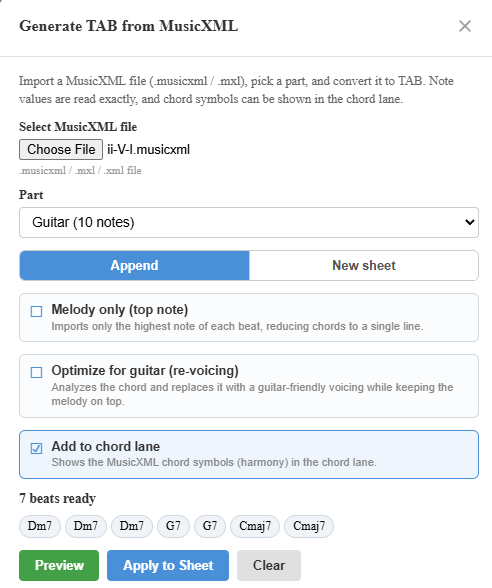
- Melody only (top note): takes just the top note of each beat, turning chords into a single line. Use this when you only want a solo or melody line.
- Optimize for guitar (re-voicing): analyzes the imported chords and replaces them with the most guitar-friendly voicings, keeping the melody as the top note.
- Reflect in the chord lane (on by default): shows the chord symbols (harmony) written in the MusicXML as symbols in the chord chart lane.
5. Preview, then apply
Before committing, you can preview the result. If it isn’t what you expected, change the part or options and try again. When it looks right, hit Apply and the TAB is written into your sheet.
MusicXML or MIDI — which should I import?
Both can auto-generate TAB, but each suits different source material.
| What you’re importing | Recommended |
|---|---|
| A score made in notation software (MuseScore, etc.) | MusicXML |
| A score with chord symbols you want to keep | MusicXML (reflect in chord lane) |
| You want to preserve exact note lengths | MusicXML |
| A phrase programmed in your DAW, or a MIDI you have | MIDI |
| MIDI is all you have | MIDI (tempo detect + quantize to tidy it up) |
If you use notation software, exporting MusicXML imports more accurately. If MIDI is all you have, use MIDI import and lean on tempo detection and quantize.
Tips for a clean conversion
- Export as score-partwise: MusicXML has two layouts, and notave supports the common score-partwise. Most notation apps export this by default, so you rarely need to think about it.
- Split your parts: v1 imports a single part / primary voice. A score with melody and accompaniment on separate parts imports closer to what you intend.
- Include chord symbols: chord symbols written in the score land straight on the chord lane — handy for keeping the accompaniment or progression.
- x/4 meters are the most stable: quarter-note-based meters like 4/4, 3/4, and 2/4 import the most reliably.
Is it free? Any limits?
MusicXML import is free to use. No login required — open notave and try it right away.
A sheet holds up to 100 measures (8 while signed out), so importing a longer MusicXML is trimmed to that limit. Longer sheets (up to 300 measures) used to be paid-only and are being opened up to everyone step by step.
Ways to “auto-generate TAB”
notave offers several ways to get TAB without entering it by hand. Pick the one that matches your starting material.
- You have a notation-app score → MusicXML import, this article. Accurate TAB with note values, chords, and chord symbols intact.
- You have a MIDI file → MIDI import. Turn programmed data straight into TAB with fingering.
Summary
notave’s MusicXML import accurately auto-generates playable guitar and bass TAB from a MusicXML file.
- Load a
.musicxml/.mxland pick a part — that’s it - Note values, chords, and chord symbols come across intact for a faithful conversion
- Append/new sheet, re-voicing, chord-lane reflection, and preview get it just right
Start by exporting a single MusicXML from your notation app and dropping it onto the converter page — no sign-up, no install, and you’ll see a full-length preview right away.
For polishing the imported TAB, see TAB notation basics; to import from MIDI instead, see how to convert MIDI to TAB.