How to Notate a Solo Guitar Arrangement — Two-Voice Chord Melody in notave
By Masashi Y.
“I want to arrange this song for solo guitar and write it down.” “I need to notate a sustained melody with a bass line moving underneath it.”
Solo guitar (chord melody) means playing melody, bass, and chords at once on a single guitar. That makes it hard to notate: if you mix melody and bass into one line, it becomes impossible to tell later which notes are the tune and which are the accompaniment.
The proper way to write a solo guitar score is to split it into two voices — the melody with stems up, and the bass and chords with stems down. This guide shows how to build a solo guitar arrangement step by step using the two-voice input in notave, a TAB editor that runs entirely in your browser.
Solo guitar is written in two voices
notave has a “Two-voice input (melody + accompaniment)” mode that keeps the melody and accompaniment on separate voices. Turn it on from Sheet Settings and your score gains two independent voices.
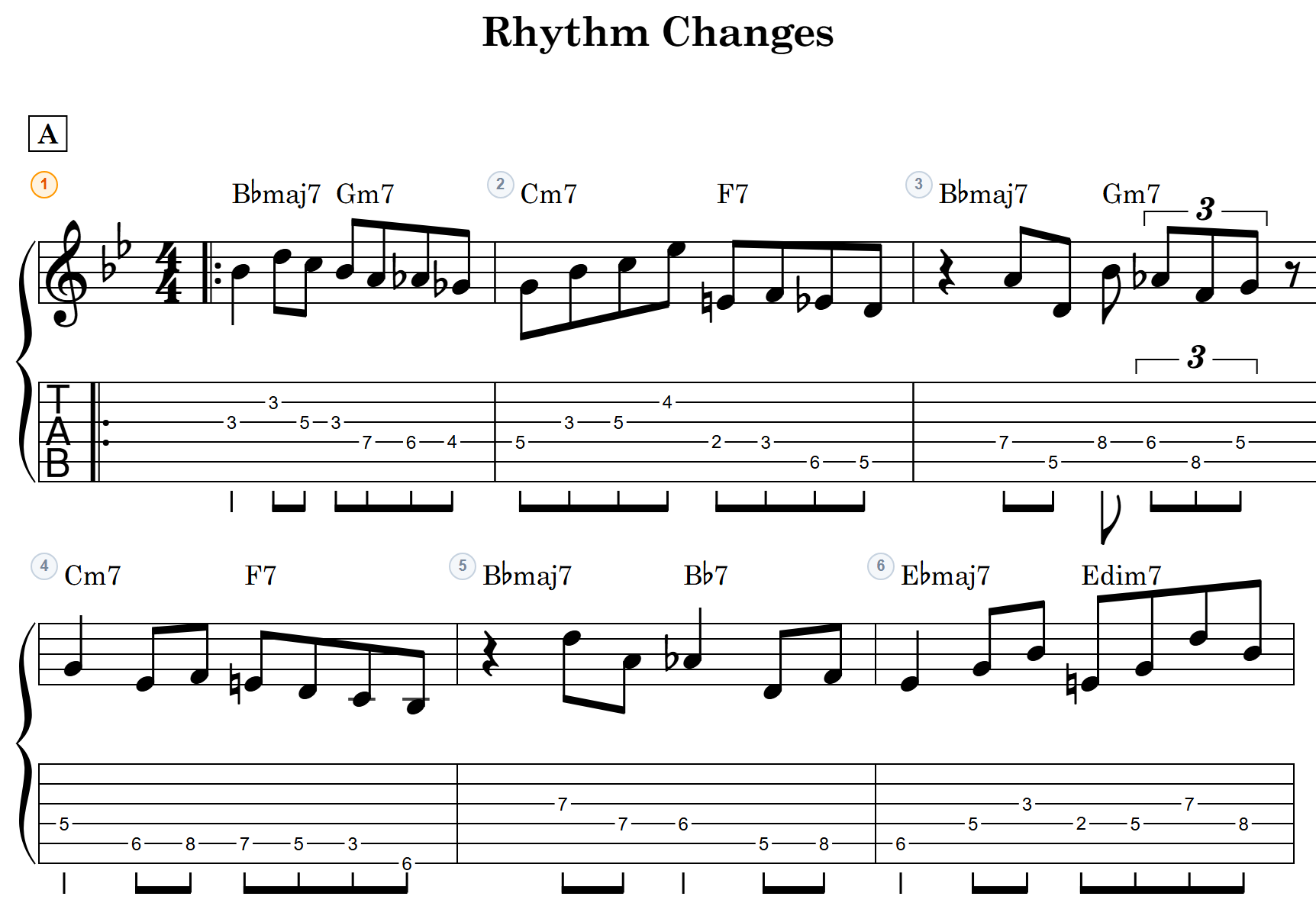
- Melody voice: notes get stems up. On the TAB staff, the stems, flags, and beams are drawn above the numbers.
- Accompaniment voice: notes get stems down. This voice carries the bass and chords (a normal single-voice score is just this voice on its own).
The number of voices is fixed at two — melody and accompaniment are all a solo guitar arrangement needs. A sustained melody with a bass line moving beneath it — the texture that defines solo guitar — is exactly what these two voices express.
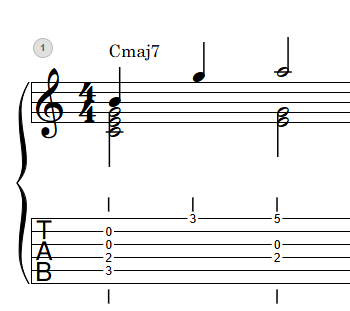
Two-voice input is an option inside Sheet Settings. Any score with it turned off keeps working exactly as before, as a single-voice TAB.
Step 1. Set up: tuning and voices
First, set things up for the song you’re arranging.
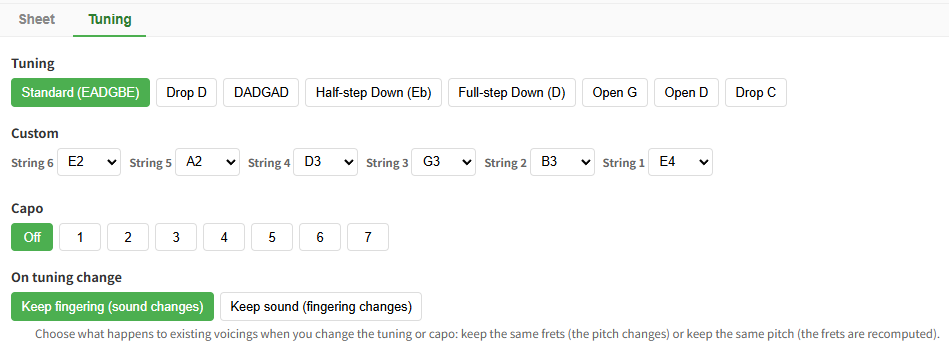
- Set the tuning and capo: Solo guitar often uses altered tunings like Drop D or DADGAD. notave supports presets, custom tunings, and capo, and shows the setting right on the score (→ Altered tunings and capo).
- Turn on two-voice input: Open Sheet Settings at the top of the screen and switch on “Two-voice input (melody + accompaniment).” The voice-switching controls then appear.

Switch voices with the toggle in the input panel header, or with the U shortcut. U flips between melody and accompaniment in any input mode. While the melody voice is active, the input cursor turns orange so you can see at a glance which voice you’re writing, and the inactive voice is dimmed to gray.
Step 2. Lay down the melody (upper voice)
Entering just the melody first makes the whole arrangement easier to plan.
Press U to switch to the melody voice, then enter the tune in either TAB input mode or staff input mode.
- To think in pitches, use staff input mode and place note names (C, D, E…); notave converts them to fingering (→ Staff input mode).
- To think in frets, use TAB input mode and type fret numbers (→ TAB input mode).
Notes entered in the melody voice get stems up automatically. If the melody starts partway through a bar, the leading rests are filled in for you — no need to type them.
Step 3. Add the bass and chords (lower voice)
Now press U to return to the accompaniment voice and build the bass and chords under the melody.
- Bass: place the root movement on the low strings. Use manual input or TAB input to specify exact strings and frets.
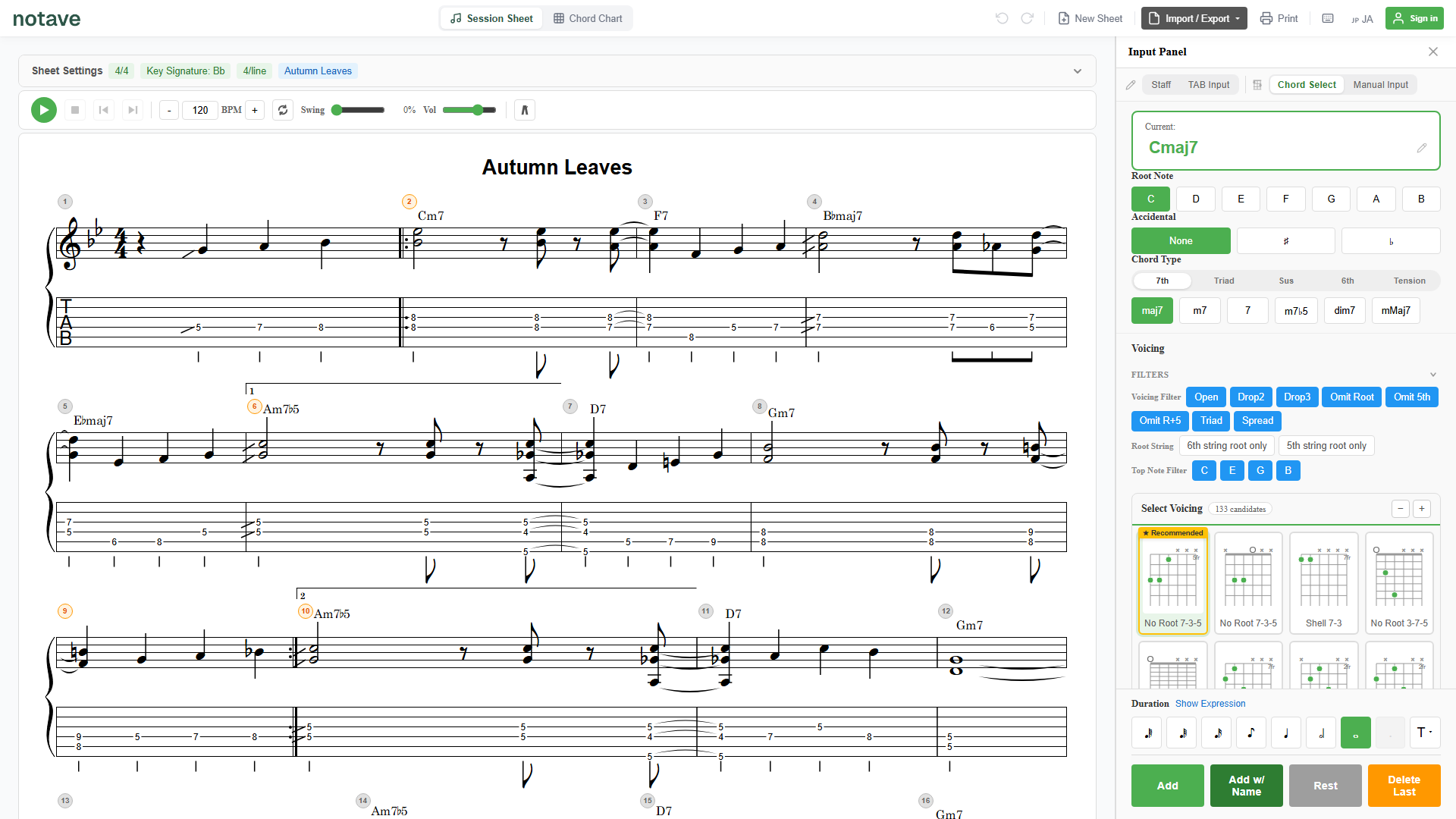
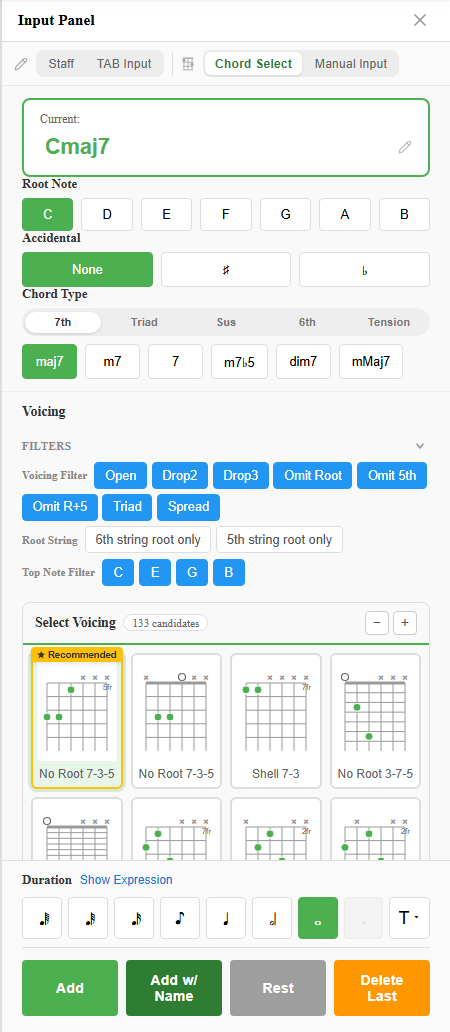
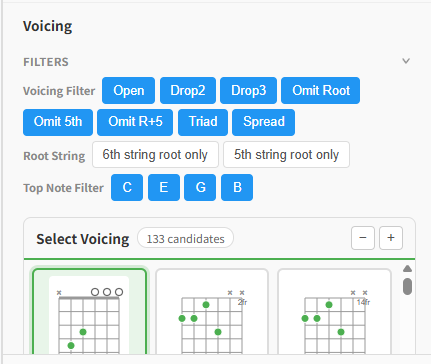
- Chords: in chord-select mode, just pick a root and chord type and notave suggests voicings. Use the top-note filter to set the highest note so the voicing stays below the melody, and voicings that connect smoothly with the surrounding chords get a “recommended” mark (→ Chord-select mode).
For solo guitar, easy-to-fret shapes like Drop 2 and root- or fifth-omitted voicings are especially handy. See omitting chord tones for more.
If you try to place notes from both voices on the same string at the same beat, notave stops you with “String already in use by the other voice.” Sustained overlaps — the melody ringing while the bass plays a different string — are written freely.
Step 4. Add expression with techniques
In any voice, the shared duration and articulation selectors are available. The techniques common in solo guitar are all notated properly.
- Hammer-ons, pull-offs, slides
- Harmonics (a solo guitar staple)
- Staccato, palm mute, vibrato, bends, and more
Dialing in note lengths and ornaments turns a bare string of notes into a score you can actually play.
Shortcut: split a single-voice arrangement into two
If you already have an arrangement entered in a single voice, or want to bring in data from another program, you can shortcut the two-voice split.
- Split voices with AI: notave splits an existing single-voice arrangement into a melody voice and an accompaniment voice, assigning the highest note of each beat to the melody.
- Import into the melody voice: overlay a MIDI or MusicXML file onto your current score as the melody voice. The accompaniment stays put, and string collisions are resolved automatically (→ MIDI to TAB, MusicXML to TAB).
Automation is just the rough draft. Tidying up stems and fingering by hand afterward gives you a clean, readable solo guitar score.
Step 5. Check by ear and finish
Both voices play back together on the spot. Use the BPM setting, count-in, and metronome to check by ear that the arrangement is actually playable, and refine as you go.
When it’s ready, notave handles sharing and saving.
- PDF print: print the score as-is. The stems-up melody is rendered correctly.
- Video export: export a scrolling MP4 of the score with no screen recording needed (16:9 / 9:16 / 1:1, with audio, chroma-key ready).
- Share link: anyone can view the same score with no login or install. The tuning and two-voice information carry over.
Note: Video export and print currently include a watermark (watermark-free export is being opened up to everyone).
Full-length arrangements, free
A sheet holds up to 100 measures (8 while signed out), free — enough for most standards with an intro and ending, or two full choruses. Longer sheets (up to 300 measures), watermark-free export, and MIDI export with both voices used to be paid-only and are being opened up to everyone step by step (current status).
Summary
Writing a solo guitar score in two voices — melody stems up, accompaniment stems down — keeps it readable and playable long after you write it. With notave’s two-voice input, the flow is:
- Turn on two-voice input and set the tuning,
- Lay the melody into the melody voice,
- Add bass and chords in the accompaniment voice,
- Add expression with techniques,
- Check by ear and share.
That’s a complete solo guitar arrangement, built entirely in the browser. Open notave.zelva.dev and try two-voice input — no install, ready right away.
For choosing between the input modes, see the four input modes; for a broad overview of notave, see creating guitar TAB.